

The Klu assistant
Klu is the assistant built into kOS. The difference between Klu and a general chatbot is what it can reach: Klu searches your organization’s documents and records, and tells you which ones it used.
In Lex and Med the assistant carries the product’s name — the sidebar reads Ask Lex or Ask Med, and the composer says “Ask Lex anything…”. It is the same assistant with a product-appropriate toolkit and persona.
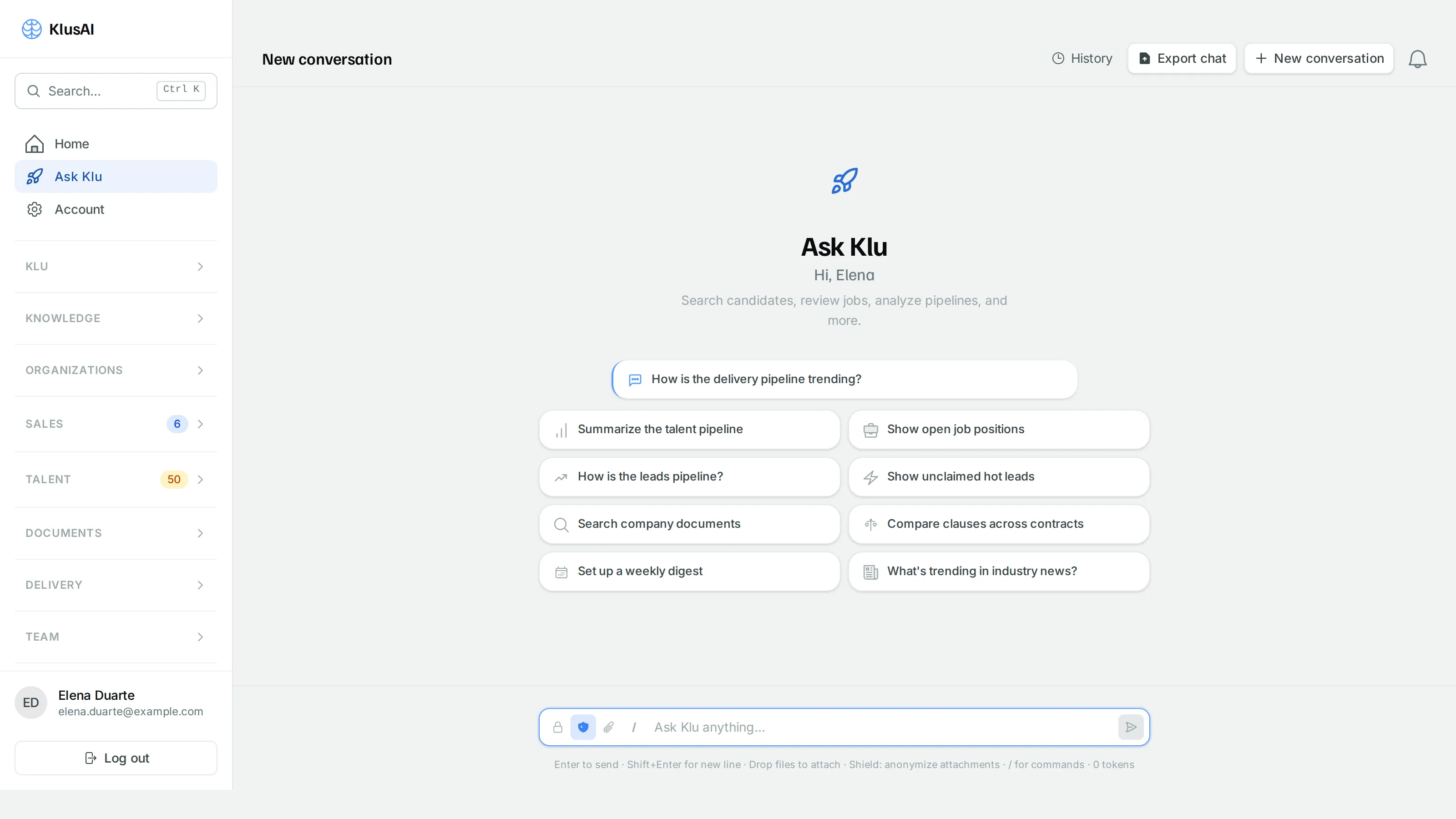
A new conversation. The suggestions come from your product’s toolkit, so a law
firm is offered clause comparison where this offers pipeline questions. In the
composer, the shield anonymises attachments before they are sent, / opens the
commands, and the counter shows how much of the context window you have used.
Open it from Ask Klu in the sidebar, or from the Ask tile on Home.
Asking a question
Section titled “Asking a question”The composer sits at the bottom. Enter sends; Shift+Enter starts a new line. Answers stream in as they are written, and a Stop button replaces Send while one is in progress, so you can cut a long answer short.
The icon row on the composer gives you:
| Control | What it does |
|---|---|
| Lock | Turns Super Private mode on for this conversation. |
| Shield | Removes personal data from attachments before they are sent. |
| Paperclip | Attach files to the message — .pdf, .docx, .doc, .txt, .md or .csv. You can also drop files anywhere on the conversation; Drop files here appears. |
| @ | Pin a document from your knowledge base so the conversation stays focused on it — up to five at a time. |
| / | Open the command list (see below). |
A hint line under the composer restates these, and shows the token count for the conversation. Hover the count for Session stats — how much of the context window is in use, how many messages are in play, the cost so far, and which model is answering. There is no model picker; the model is a deployment setting.
Starting well
Section titled “Starting well”On an empty conversation Klu greets you by name and offers suggestion cards — one-click starters appropriate to your product. In Lex, for example, Analyze a contract, Compare clauses across contracts, Search for a client, Status of active cases. In Med, Search the medical knowledge base, Today’s appointments, Search for a patient, Summarize clinical guidelines.
They are ordinary prompts, not special features — a way to see what the assistant is good at before you know what to type.
Commands
Section titled “Commands”Typing / (or clicking the / icon) opens a filterable list of prepared,
structured prompts. Every product has:
| Command | What it does |
|---|---|
| /report | Generate a PDF report from this conversation |
| /summary | Concise executive summary of the conversation |
| /plan | Create a structured multi-step plan |
Lex adds Contract analysis, Compare clauses, Cross-check documents,
Legal memo and Deadlines — and does not offer /plan. Med adds
Appointments, Patient summary and Clinical guidelines.
A command is the right choice when you want the same thorough treatment every time — extracting every deadline from a contract, say — rather than a conversational answer.
Managing conversations
Section titled “Managing conversations”Header actions, left to right:
- Choose assistant — pick which of your organization’s assistants to talk to. Picking one starts a fresh conversation bound to it.
- History — the ten most Recent conversations, with the time since each was last active, and a link to the full Recent chats page, which is searchable.
- Export chat — download the whole conversation as a branded PDF. Where your administrator has enabled it, Export Word does the same as a Word file.
- New conversation — start clean.
Conversations are titled automatically from their first exchange and kept; there is no rename. Deleting one — from the History dropdown or the Recent chats page — also permanently removes any files you uploaded to it, which the confirmation says.
Individual answers can be taken away too: each has Export PDF.
Start a new conversation when you change subject. Klu carries the whole conversation as context, so a long thread that wandered from a contract to an invoice to a deadline gives worse answers than three short ones.
Assistants
Section titled “Assistants”An assistant is a named configuration of Klu that your organization sets up: its own instructions, tone, default knowledge base, greeting, starter questions, and which tools it may use.
Most organizations run one. Several become useful when different jobs want different behaviour — a drafting assistant with a formal tone and the contract library as its default, a research assistant pointed at reference material.
Every chat user can switch between the assistants that are enabled, whether or not they can configure them. Creating and editing them needs the Manage AI assistants permission, under Organization → Assistants. See Administering your organization.
Elements: reusable prompts
Section titled “Elements: reusable prompts”Organization → Elements holds reusable prompt workflows your organization can run with typed inputs, rather than retyping a long instruction. Pinned ones appear as quick actions on the empty conversation, with a Toolbox link to the full set. Running them needs assistant access; authoring them needs the Manage the prompt library permission.
How answers show their work
Section titled “How answers show their work”This is the part worth understanding properly, because it is what makes an AI answer usable in professional work.
Live status while it works
Section titled “Live status while it works”While Klu is answering you see what it is doing rather than a blank spinner: Thinking, then Calling <tool> while it looks something up, then Used <tool> with a result count when that step finishes. When it is reading documents you attached, it says so.
None of this needs interpreting. It is there so a fifteen-second pause is legible as work rather than a hang.
Some answers arrive as more than text. A charted answer appears as an inline chart, several charts as a carousel you can page through. A report or a Word export appears as a file card that shows Generating… and then becomes a download.
Citations
Section titled “Citations”Answers that used your documents carry their sources in two places.
Inline, as numbered markers. Klu puts a [1], [2] right after the claim it
supports. Hover one for a tooltip with the source’s title, page and a short
excerpt; click it to jump to the source.
Below the answer, as a deck of numbered source cards — or, on some screens, a Show N sources toggle over a stacked list. Each source gives:
- The document title, and its filename
- The page, or page range
- The section heading where the passage sits
- An excerpt of the passage actually used
- A link to View source, or to download the original file
The first four cards are shown; Show N more reveals the rest. If Klu looked at sources but the final answer did not lean on any of them, the deck is headed Sources consulted instead — worth noticing, because it means the answer is not grounded in them.
Clicking a source opens a panel with the passage in place, Show surrounding context to widen it, and actions to view or download the original. That is the verification loop: read the claim, open the source, confirm the source says it.
Lex goes further, with per-answer badges stating how well grounded the answer is — for example High confidence — grounded in binding legislation, Grounded in persuasive sources only — no binding authority found, or No sources found — not fabricating a citation — plus warnings when the answer names a legal reference it could not cite. See Lex.
Telling us when it’s wrong
Section titled “Telling us when it’s wrong”Every answer has Flag as incorrect. Pick a category — Incorrect, Hallucination, Outdated or Other — add a note and Submit. The answer is marked Flagged — thank you for your feedback.
This is not a suggestion box. Flags are the signal used to fix retrieval and prompting, so a flagged bad answer is worth more than an abandoned one.
Plans, steps and choices
Section titled “Plans, steps and choices”Klu does not silently perform long chains of work. When a request needs several steps, it proposes them first.
A plan you approve
Section titled “A plan you approve”Klu shows a card with the goal and a numbered list of between two and ten steps, each with a short description. Two buttons:
- Approve Plan — the card is marked approved and Klu starts working through it.
- Revise — the card notes it is awaiting your feedback, and the composer invites you to describe what to change in the plan. Type the change as an ordinary message and Klu proposes again.
Nothing happens until you approve. Read the steps: this is the cheapest moment to catch a misunderstanding, before any work is done.
Steps that update as it goes
Section titled “Steps that update as it goes”Once approved, each step’s state changes as it is reached — running, done, skipped or failed — and completed steps gain a one-line summary of what happened, such as the number of records found. You can watch progress and see exactly where something stopped.
If a task turns out to need more work than one turn allows, Klu says I have more work to do on this and offers Continue rather than stopping silently.
Choices when it needs a decision
Section titled “Choices when it needs a decision”When Klu needs you to pick between options it puts them on screen as buttons — up to six — rather than asking you to describe your choice in prose. The question itself is in the text above them. Click one and your choice is confirmed and sent as your next message.
Approval before it acts
Section titled “Approval before it acts”Actions that change something or reach outside the Hub need explicit approval. Klu shows This requires your approval before I proceed, names the action and the values it will use, and offers Approve or Deny. If it is about to send an email it also tells you a KlusAI attribution footer will be appended.
Read the values, not just the action name. This is the moment to notice a wrong recipient or a wrong amount.
What Klu can and cannot reach
Section titled “What Klu can and cannot reach”Klu’s toolkit is scoped to your product. Every assistant can propose plans, mark steps, present choices, render charts, generate reports and export to Word. On top of that:
- Lex — search your knowledge base and Romanian legislation cross-references, cross-reference documents, extract structured data, and search clients, cases, deadlines, court cases, Constitutional Court decisions and litigation matters.
- Med — search your knowledge base, cross-reference documents, extract structured data, and search patients and appointments.
Two limits are structural rather than configurable. Klu cannot see another product’s tools — a Lex assistant has no clinical tools at all. And Klu can only reach records you are permitted to see, so asking the assistant is never a route around a permission you do not have.
An administrator can narrow it further per assistant through the toolbox.
Attachments versus your knowledge base
Section titled “Attachments versus your knowledge base”These are different, and the difference occasionally surprises people.
A file attached to a message is read for that conversation. It is visible only to you, and it does not become shared library content. While a conversation carries a readable attachment, Klu answers about it from the attachment itself rather than searching your knowledge bases — deliberately, so a question about the contract in front of you is not answered from an unrelated file. If you want your knowledge bases consulted too, say so in the question.
A file uploaded through Knowledge → Upload becomes part of your organization’s library: shared with colleagues, searchable, and available to every future conversation. See Knowledge bases.
Whether files dropped into chat are also saved to the knowledge base is a per-assistant setting your administrator controls.
Limits
Section titled “Limits”- Attachments are capped at 10 MB per file by default.
- A very long document may not fit in one message. Klu tells you so, and suggests either asking about a specific section or splitting the file. For documents you will return to, put them in a knowledge base instead — there is no such limit on retrieval.
- There is an hourly cap on messages per person — 100 by default. Exceed it and Klu replies “You’ve sent too many messages recently. Please wait a bit before trying again.”
- Very long conversations are summarised as they grow, so nothing is abruptly lost — but a fresh conversation per topic still gives better answers.