

The Hub
The Hub is the application you land in after signing in. Every product — Lex, Med, razorBridge — presents the same shell: a left sidebar of sections, a header, and a working area. What differs is which sections are in the sidebar, because that is determined by your product, your organization, and your role.
Everything in the Hub lives under /hub/ on your product’s address. If you use
Lex, your Hub is lex.klusai.com/hub/.
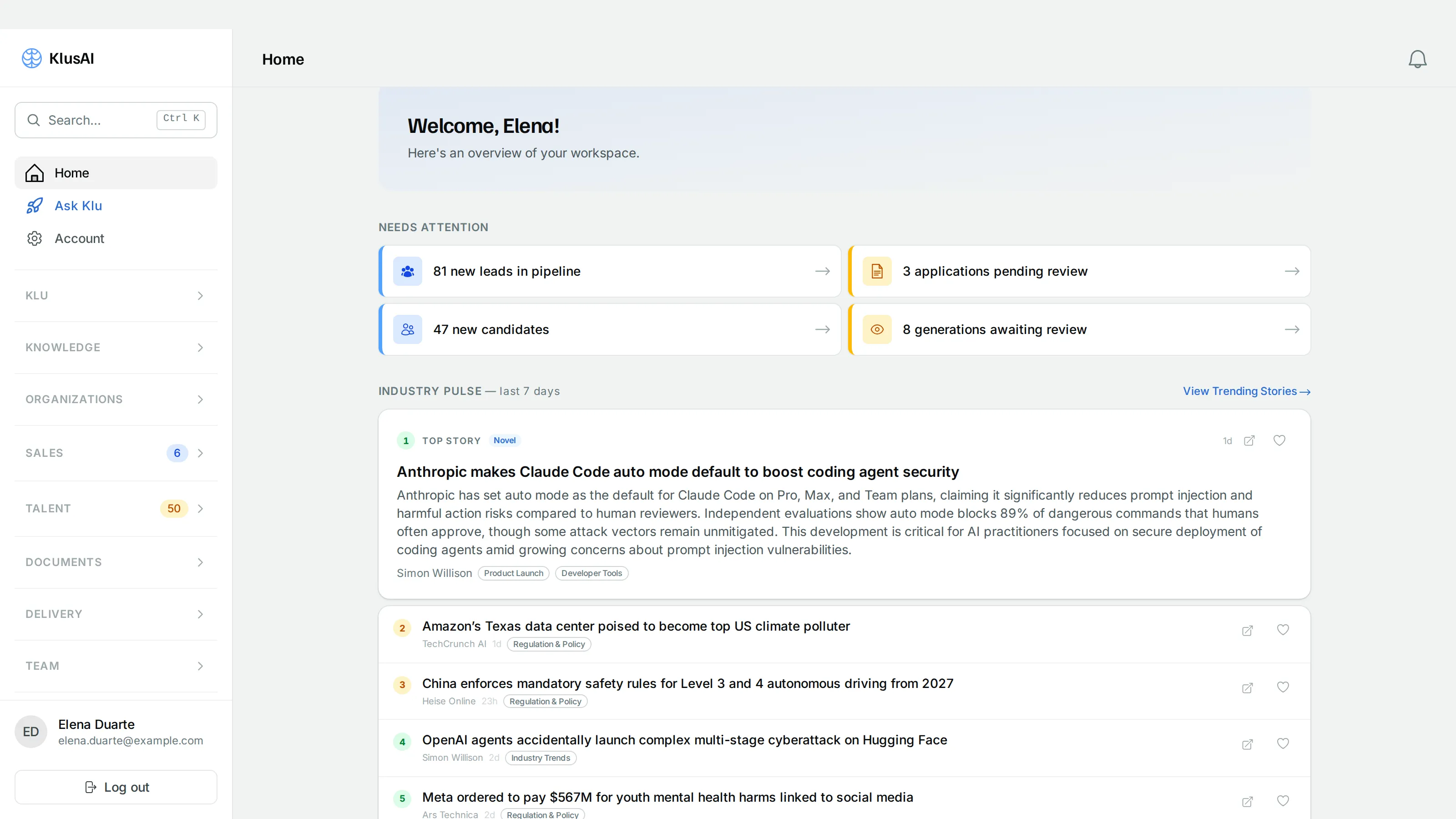
Home in the professional-services product. Your sidebar will list different sections — a law firm sees case files and deadlines where this shows Talent and Delivery — but the shell is the same everywhere.
The shell
Section titled “The shell”The sidebar
Section titled “The sidebar”The sidebar is the map of your workspace. It has three layers, top to bottom:
- Fixed links — Home, an entry for the assistant (Ask Klu, or Ask Lex / Ask Med where the assistant carries the product’s name), Account and Connections.
- Collapsible sections — the modules you have access to, grouped by area: the domain sections your product brings, plus platform sections such as Knowledge and Organization where your product includes them. Sections expand and collapse, and remember their state as you navigate.
- Your account footer — your name and email, a language toggle where the product offers more than one language, and Log out.
Two details are worth knowing because they are easy to miss:
Numbers on sidebar items are live counts, not decoration. Where a section tracks a queue of work, the count of things waiting for you appears beside it, and a collapsed section header carries the sum of the items inside it — so you can tell a section needs attention without opening it.
You can pin pages. Hover any sidebar item and a pin icon appears — Pin to top puts it in a Pinned group at the very top of the sidebar; Unpin removes it. Useful when your day happens in two or three screens and the sidebar is long.
On a narrow screen the sidebar is hidden behind the menu button in the top-left of the header, and slides over the content when opened.
Search: the command palette
Section titled “Search: the command palette”The Search… button at the top of the sidebar — or ⌘K on macOS, Ctrl K elsewhere — opens a palette listing every page you have access to, grouped by section. Type a few letters of a page name and press Enter. This is usually the fastest way to move around, and it only ever offers pages you are actually permitted to open.
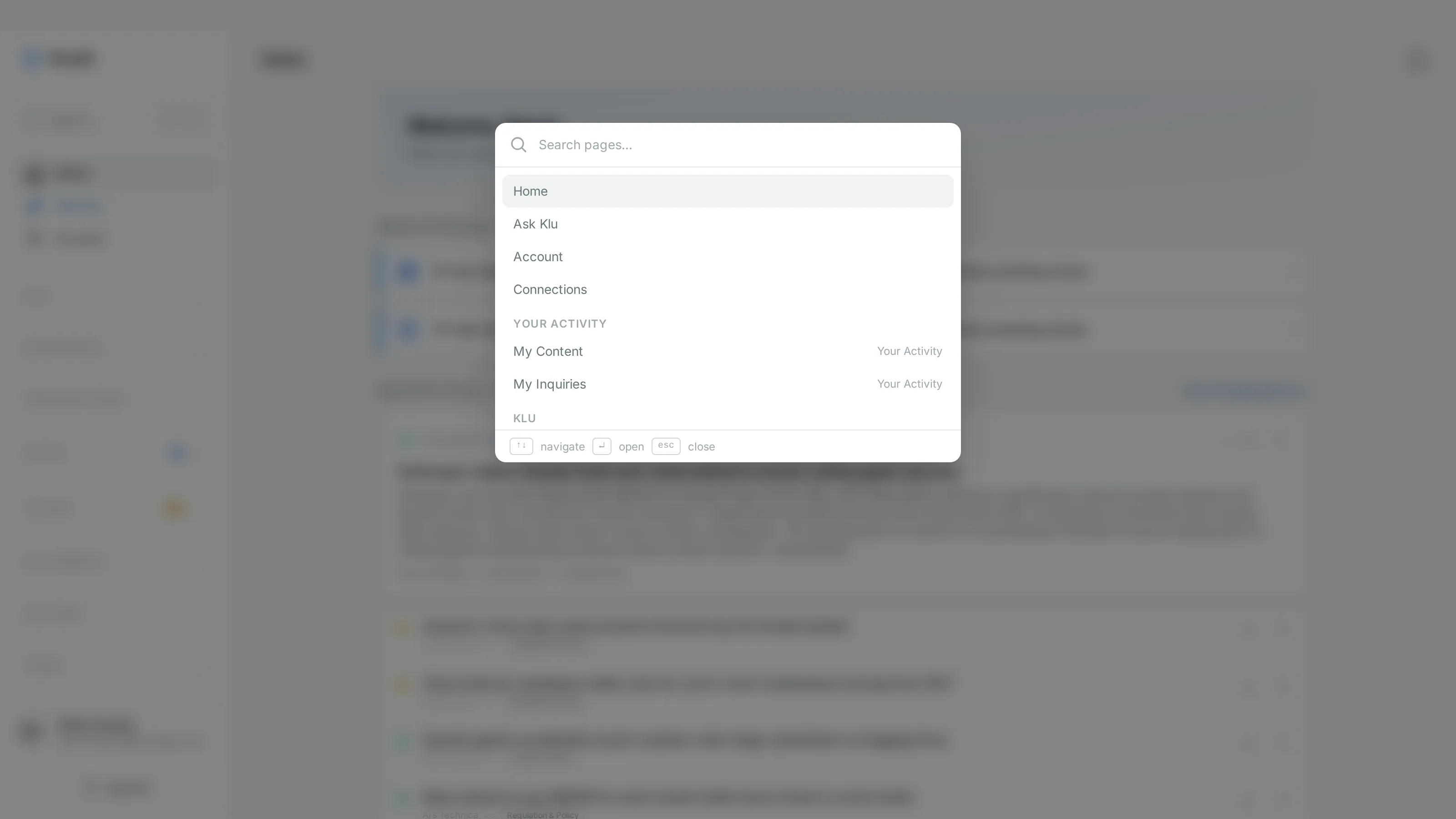
The palette groups results by section and shows the keys as you go: arrows to move, Enter to open, Escape to close.
Notifications
Section titled “Notifications”A bell in the header holds your notifications; new ones also appear briefly as toasts while you work. The Notifications page keeps the history, with Clear all to empty it.
Home is a starting point rather than a dashboard to stare at. It greets you by name and shows:
- Your workspaces — a card per area you have access to, each with a couple of headline numbers, linking into that module.
- Recent activity — the records most recently touched in your organization, with their status.
- Quick actions — shortcuts to Search Knowledge Base, Ask the assistant, and your Account.
Your organization decides what you see
Section titled “Your organization decides what you see”Every screen in the Hub is scoped to one organization — your firm, your clinic, your team. You are never looking at two tenants at once.
If you belong to a single organization, this is invisible: you sign in and you’re in it. If you belong to more than one, you are asked to choose immediately after signing in — a Select organization screen listing each organization with your role in it — and afterwards an organization switcher appears in the sidebar showing the current one, so you can move between them.
Read more in Organizations, roles and modules.
Your account
Section titled “Your account”Account is where your own settings live, separate from anything organization-wide:
- Your details — profile photo, first and last name, company, job title, and Timezone, which controls how dates and times are displayed throughout the app.
- Answer style — how the assistant formats its replies in every conversation. Your choice overrides the assistant’s own default style.
- Language — the language of the interface, where your product offers more than one. The same toggle sits in the sidebar footer.
- Security — your email address and its verification state, Change password, and Two-factor authentication with recovery Backup codes.
Connections
Section titled “Connections”Connections lists your Connected Accounts — the Google, Microsoft or other identity-provider accounts linked to your kOS login, so you can sign in with one click instead of a password. Connect links one; Disconnect removes it. Only providers your deployment has configured appear.
Signing in
Section titled “Signing in”Sign-in is at /accounts/login/ on your product’s address: email and password,
with Remember me, and Forgot password? if you need a reset. Depending
on how your organization is set up you may also see Continue with Google,
Continue with Microsoft or a similar button for your identity provider —
only providers your deployment has configured appear.
Some products only admit people who have been invited; in that case there is no open sign-up and an administrator invites you. See Administering your organization.